1. The big idea
CatalogShoot turns the product photos you already have into a whole on-model catalog — stills and video — and lets your shoppers try garments on themselves. Master these four moves and the rest is detail.
Create a model
Generate photoshoots
Make it move
Storefront Try-On
2. Getting around
The admin has six areas in the left nav.
Home
Products
Models
Try-On activity
Try-On settings
Billing
The Home page is your daily starting point — it reads top to bottom.
- OverviewAcross the top: your plan, usage this cycle (with a Billing shortcut), how many photos are Activated on products, and Total generated. A Generating count appears while jobs are running.
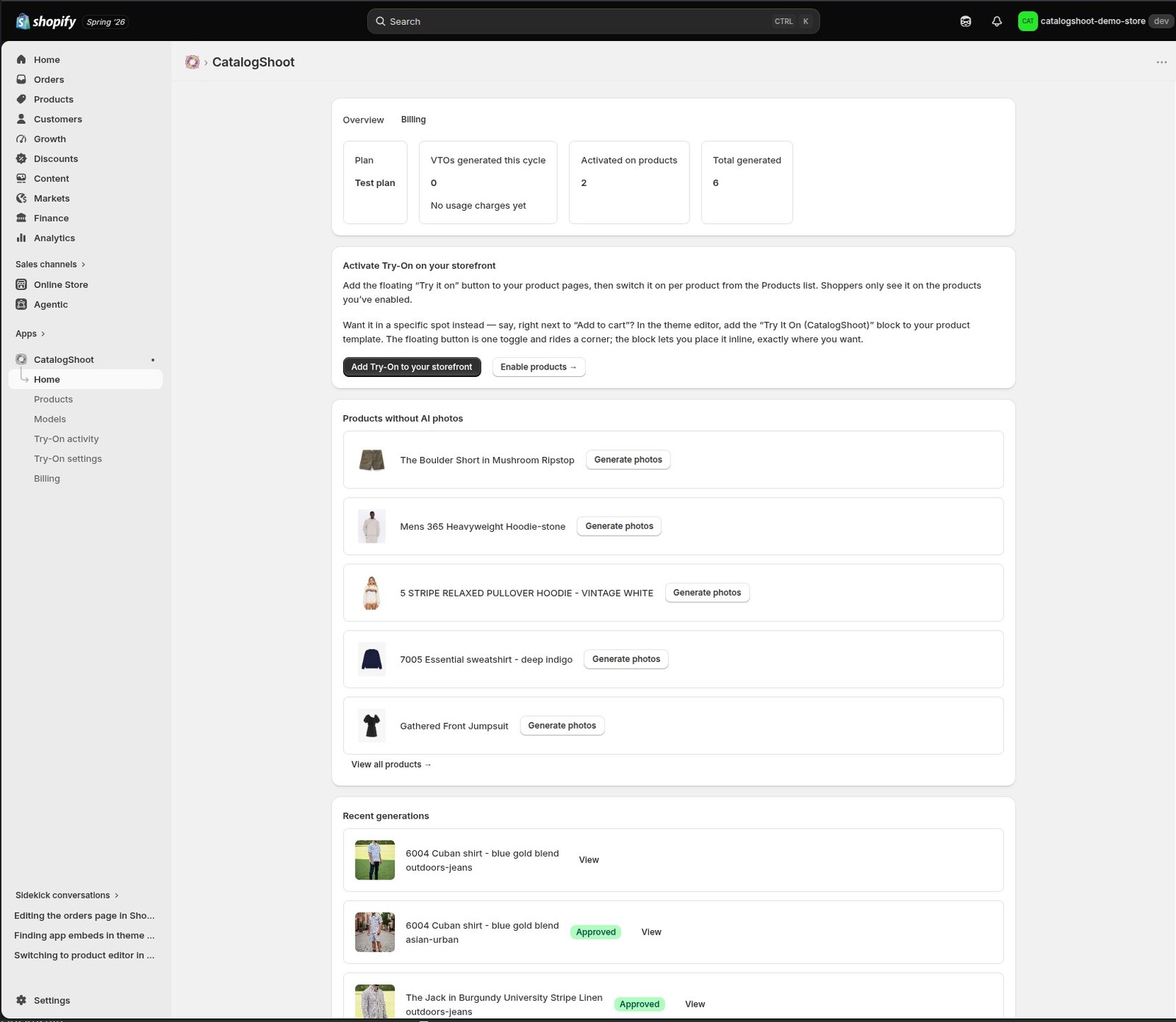
The CatalogShoot admin — Home, with usage and quick starts - Activate Try-On on your storefrontAdd Try-On to your storefront opens the theme editor and turns on the floating button. Enable products → takes you to the catalog to switch it on per product — shoppers only see it where you’ve enabled it. The inline block (next to Add to cart) is covered in Storefront Try-On, later in this tutorial.
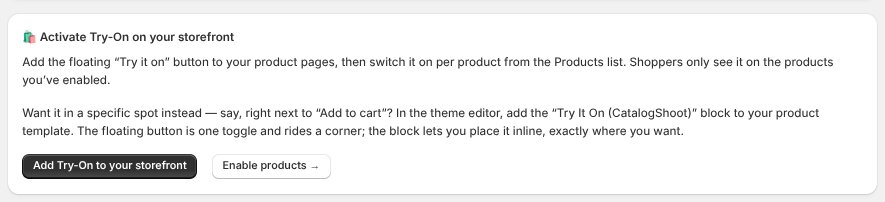
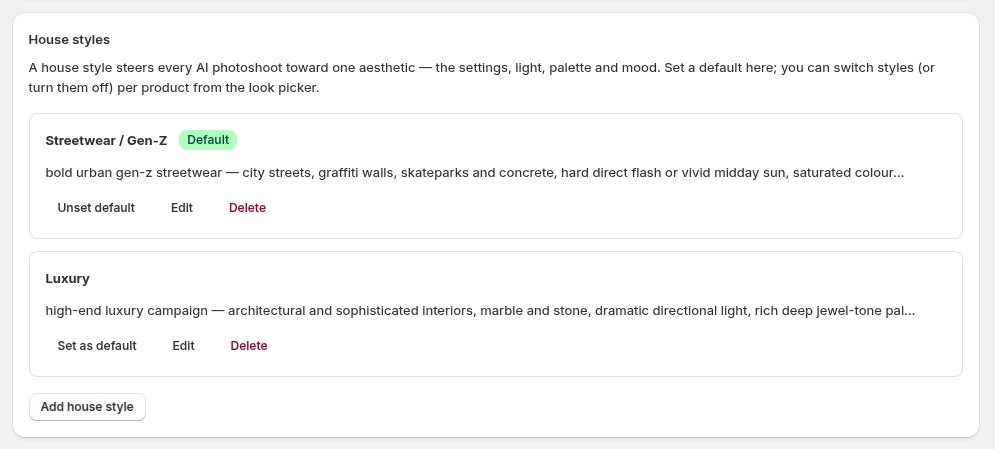
Activate Try-On on your storefront — add the floating button, then enable it per product - Create a house style🎨 House styles steers every photoshoot toward one aesthetic. Add house style — give it a name and describe it in a sentence like “warm bohemian, golden-hour light, earthy tones”. Start from a preset and tweak the words, or write your own. Set as default and every new shoot lives inside it. You pick which style a product uses on the photoshoot page.
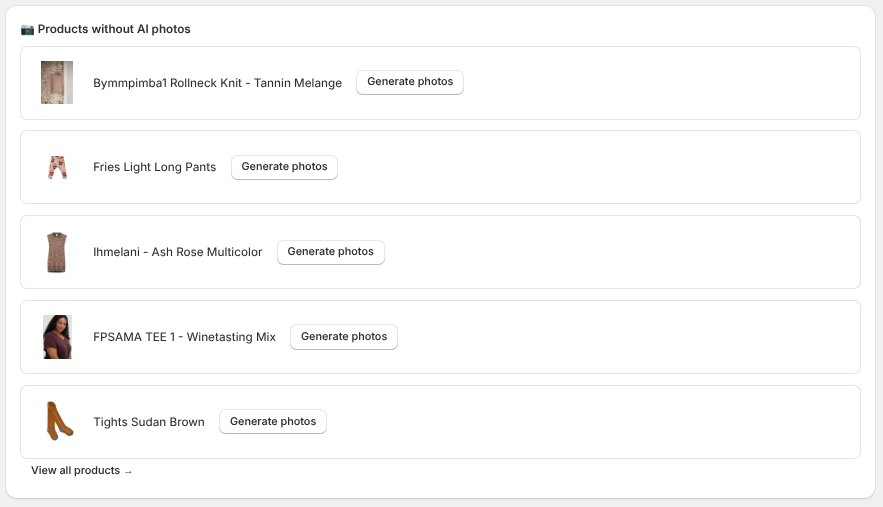
The House styles panel — add a style, set a default, edit or delete - Products without AI photos📷 Products without AI photos lists garments that don’t have an activated shot yet. Each row has Generate photos; View all products → opens the full catalog.
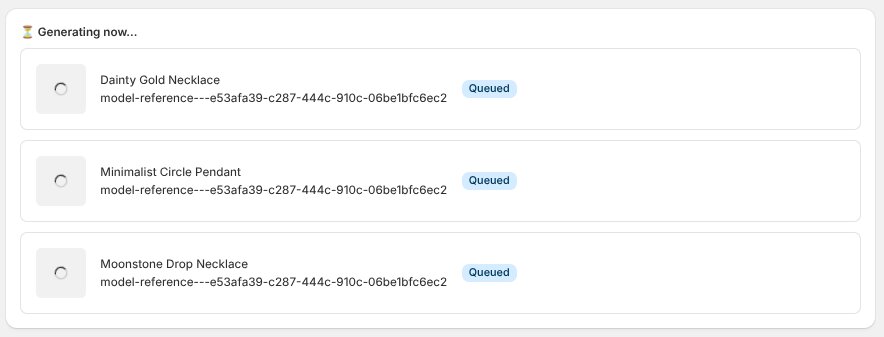
Products without AI photos — each row has Generate photos; View all products opens the catalog - Generating nowWhile a shoot is running, ⏳ Generating now… lists what’s queued or in flight, with a spinner and a Queued or Generating… badge.
Generating now — queued and in-flight photoshoots while they render - Recent generations🖼️ Recent generations is your latest finished shots — View opens that product; an Activated badge means it’s already in the Shopify gallery.
3. Your models
A model is the person who wears your garments. Build one once and cast it across everything, so your catalog looks like a single, consistent shoot. Two ways to make one — both save with a locked identity (front, three-quarter and profile) so it’s recognisably the same person in every shot.
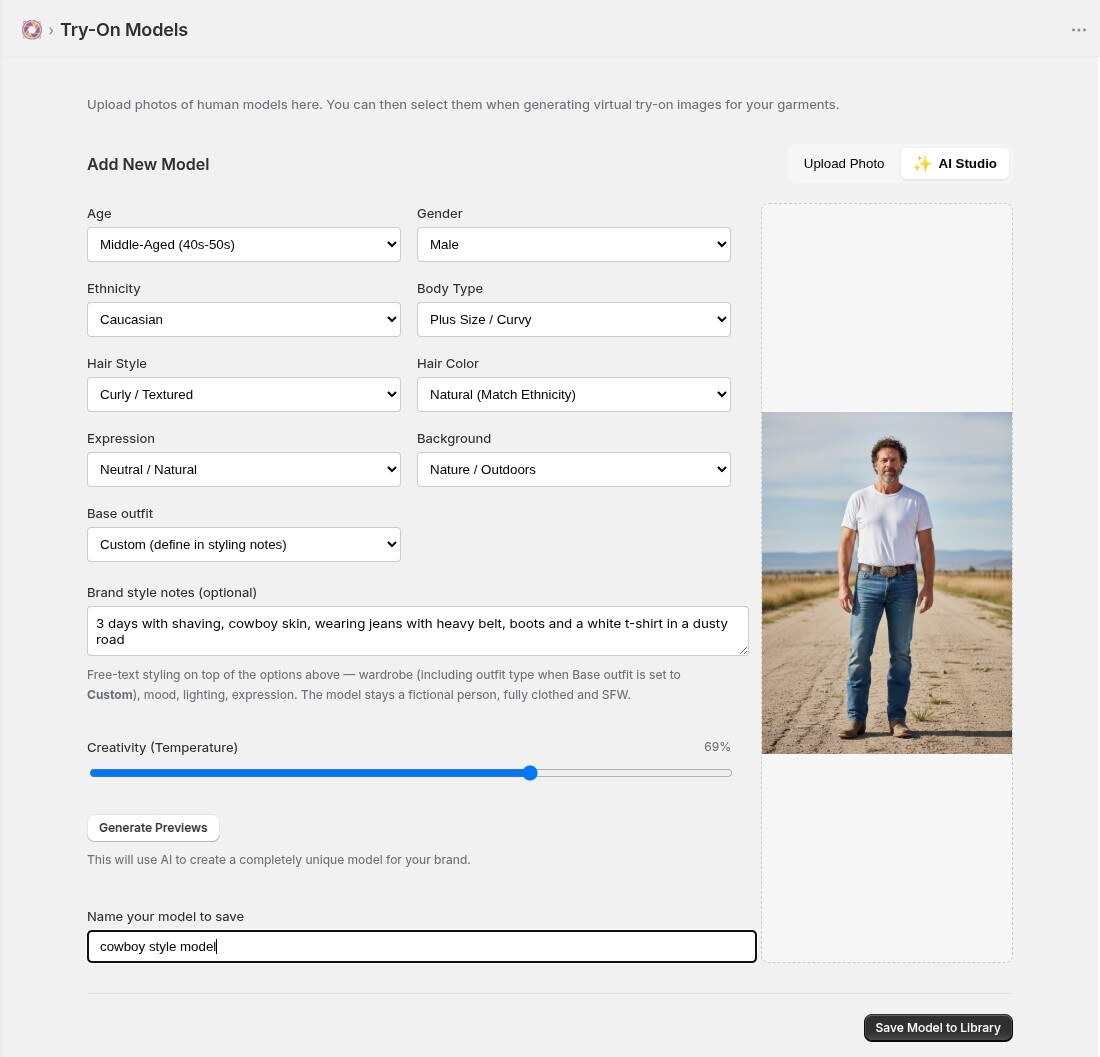
- Build one from options — ✨ AI StudioIn Models → Add New Model → AI Studio, set age, gender, ethnicity, body type, hair and a default outfit, plus optional brand style notes (“relaxed coastal vibe”). Generate Previews, keep the one that fits your brand, and Save Model to Library. Make models that match your customers — a 45+ shop or a streetwear label — instead of a generic stock look.
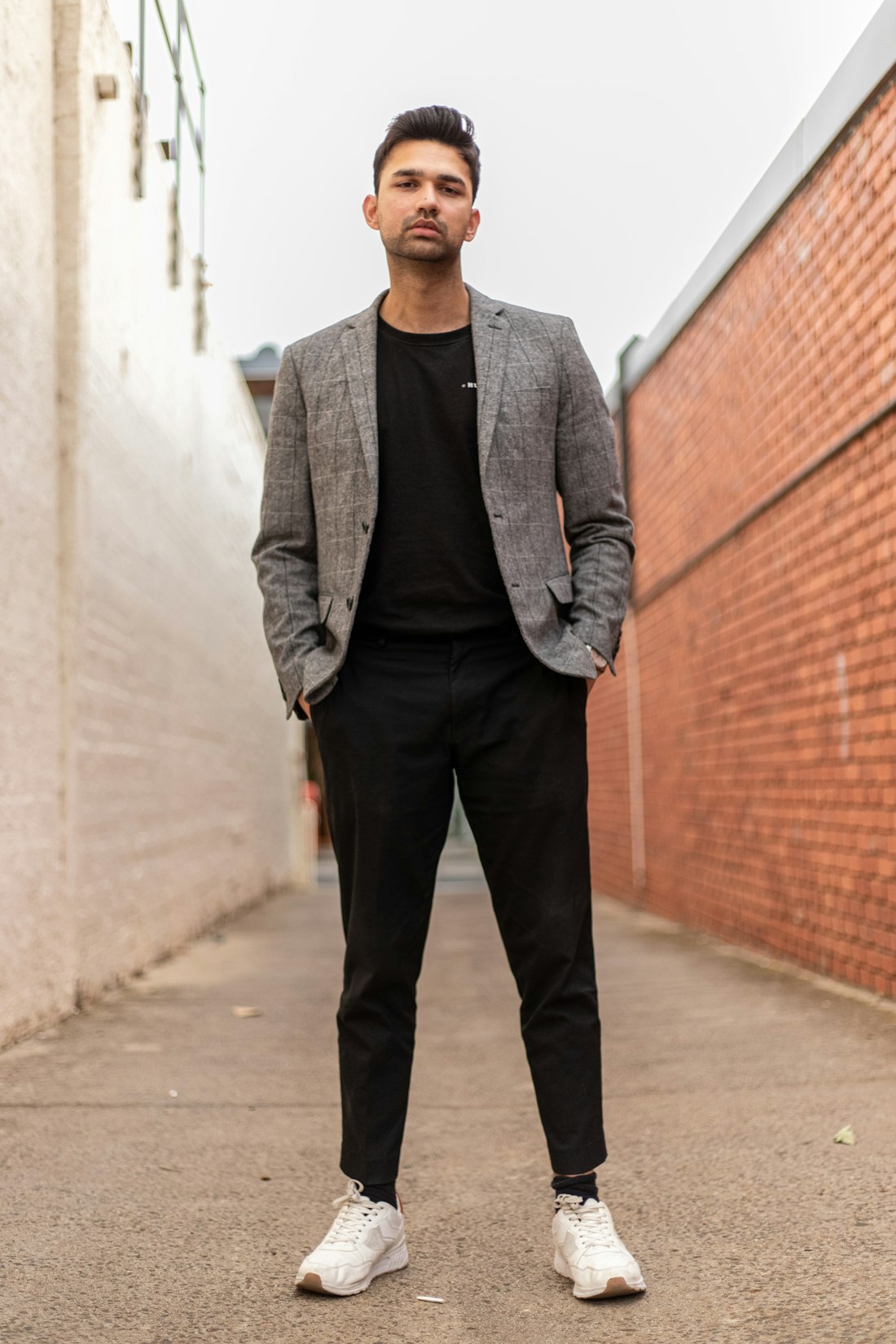
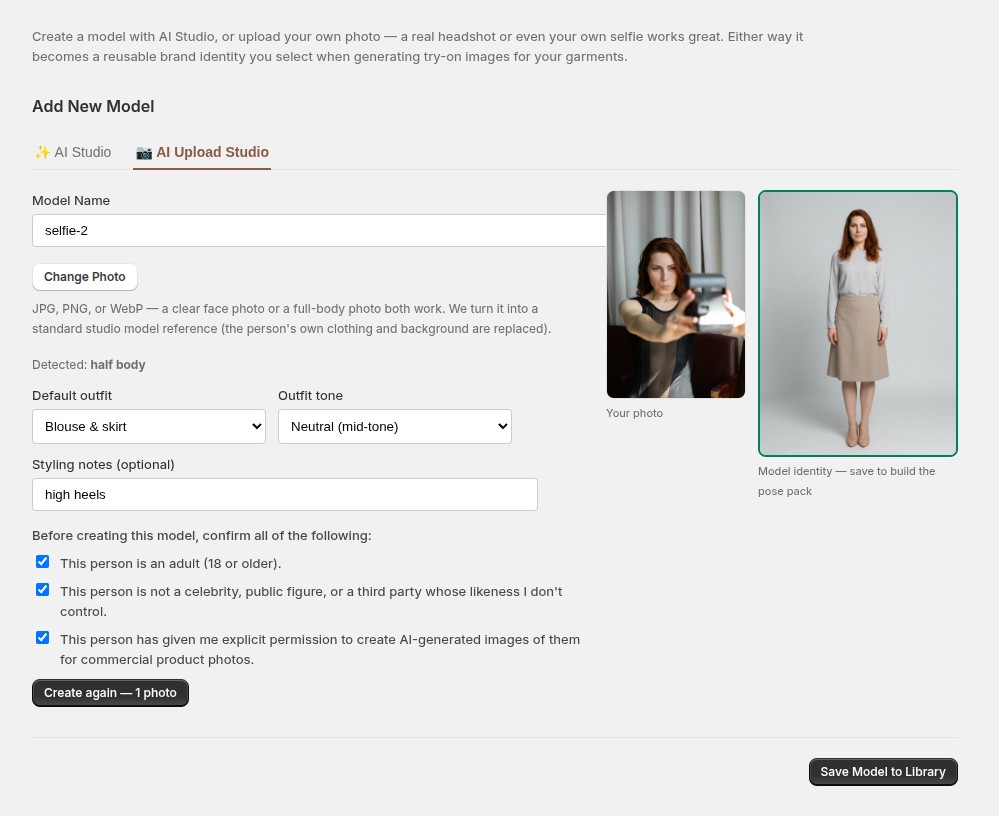
AI Studio — set the options and generate a model - Or upload a real person — 📷 AI Upload StudioYour best model might already be on your camera roll. Name the model and upload a photo — a face shot or a full-body one. The Studio restages that same person as a clean full-body studio model (own clothing and background replaced; from a face photo it styles a matching body). Because it’s a real person, you then confirm three consent checks — adult · not a public figure · you have their permission — which we record with your store’s details. Pick a base outfit or describe one, approve it side-by-side with your original, and create.
AI Upload Studio — a real photo restaged as a clean studio model, shown next to the original - The pose pack builds itselfOn save, CatalogShoot generates the model’s pose pack — front, three-quarter and profile — automatically. Those angles keep every product uniform. View identity reopens the pack any time.
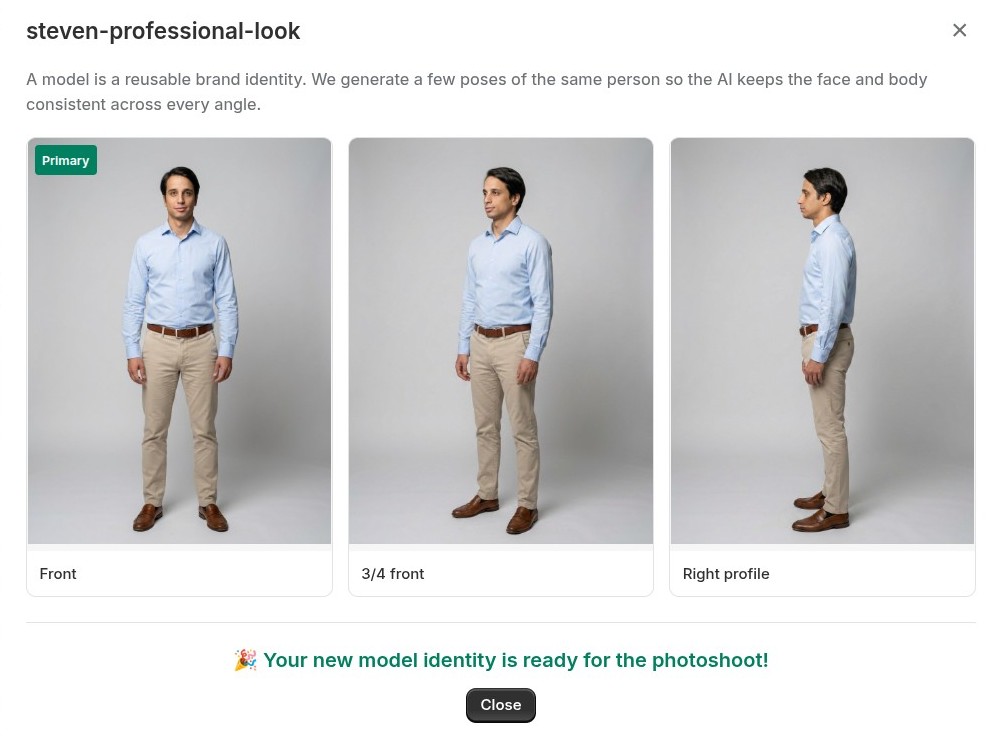
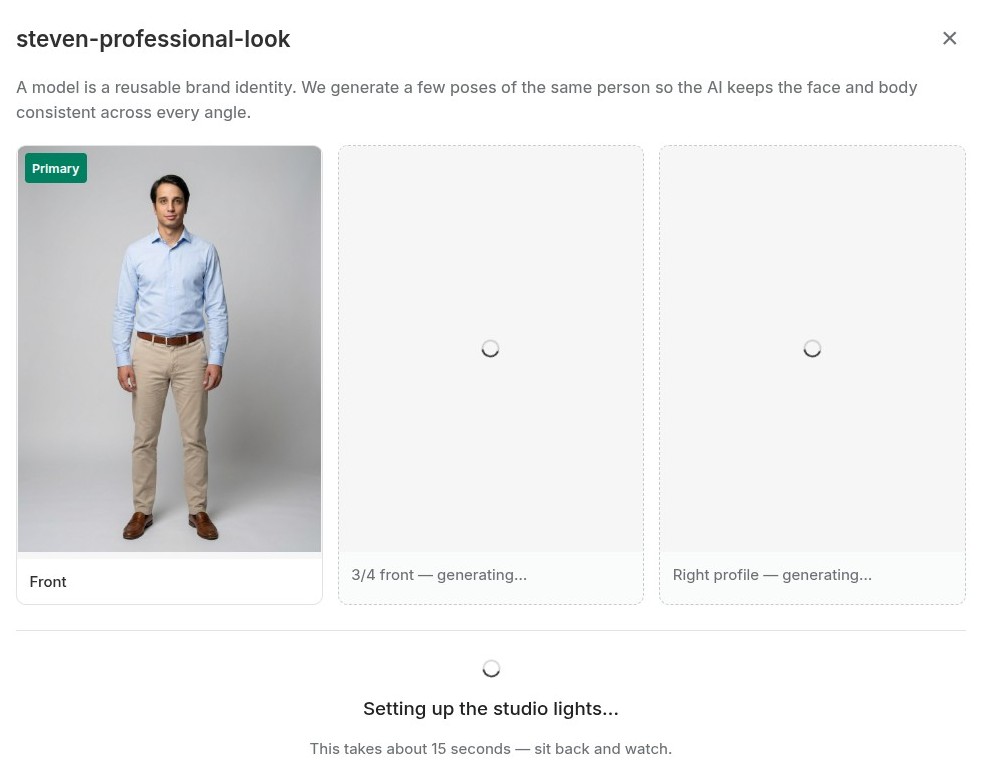
A model's pose pack — front, three-quarter and profile, built automatically
4. Photoshoots
This is the heart of CatalogShoot: one flat product photo becomes a full photoshoot — your garment worn on your model, in believable scenes, every frame composed like a proper catalog shot.
Open Products. At the top, a tab bar switches 🛍️ Products, 📸 Generated photos, and 🎬 Generated videos — your catalog, then every finished shot and clip across the shop, ready to review. Start on Products, pick a garment, and you’re in the photoshoot.
- Pick a product, then a modelChoose a garment, then pick a model first. A real stylist doesn’t plan the shoot before meeting the model — so nothing generates until you choose one. Your last model is remembered per product, so you drop straight back in next time.
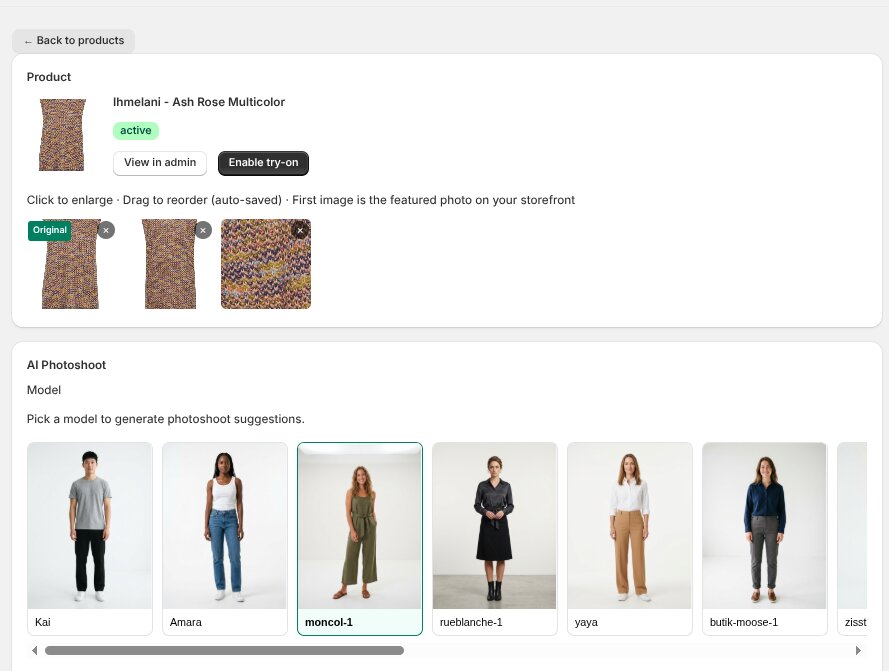
The product page — pick a model to generate photoshoot suggestions - Pick a house style for this productNext to Refresh sits a Style dropdown. The shop default from Home is pre-picked; choose another, or No style for a clean, neutral shot. Changing style restyles the looks. Your choice is remembered per product. Create and edit styles on Home.
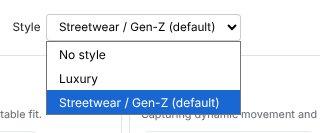
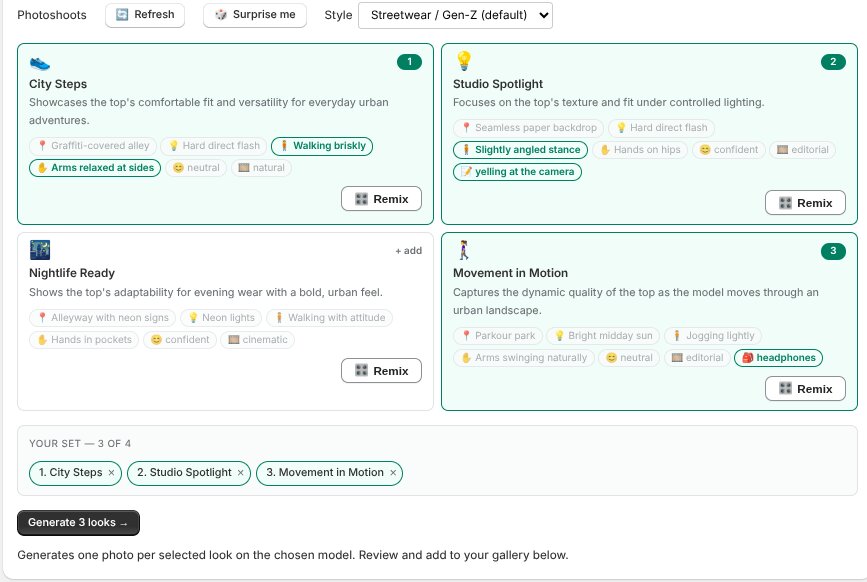
The Style dropdown — shop default is pre-picked; No style or another house style restyles the looks - Get looks cast for that modelCatalogShoot suggests a set of looks styled for the model (and house style) you picked — golden-hour street, a cosy interior, a clean studio, mid-stride down a sidewalk. Not enough? 🔄 Refresh for a new set, or 🎲 Surprise me for bolder ideas. Switch models and fresh looks appear; switch back and your previous set returns.
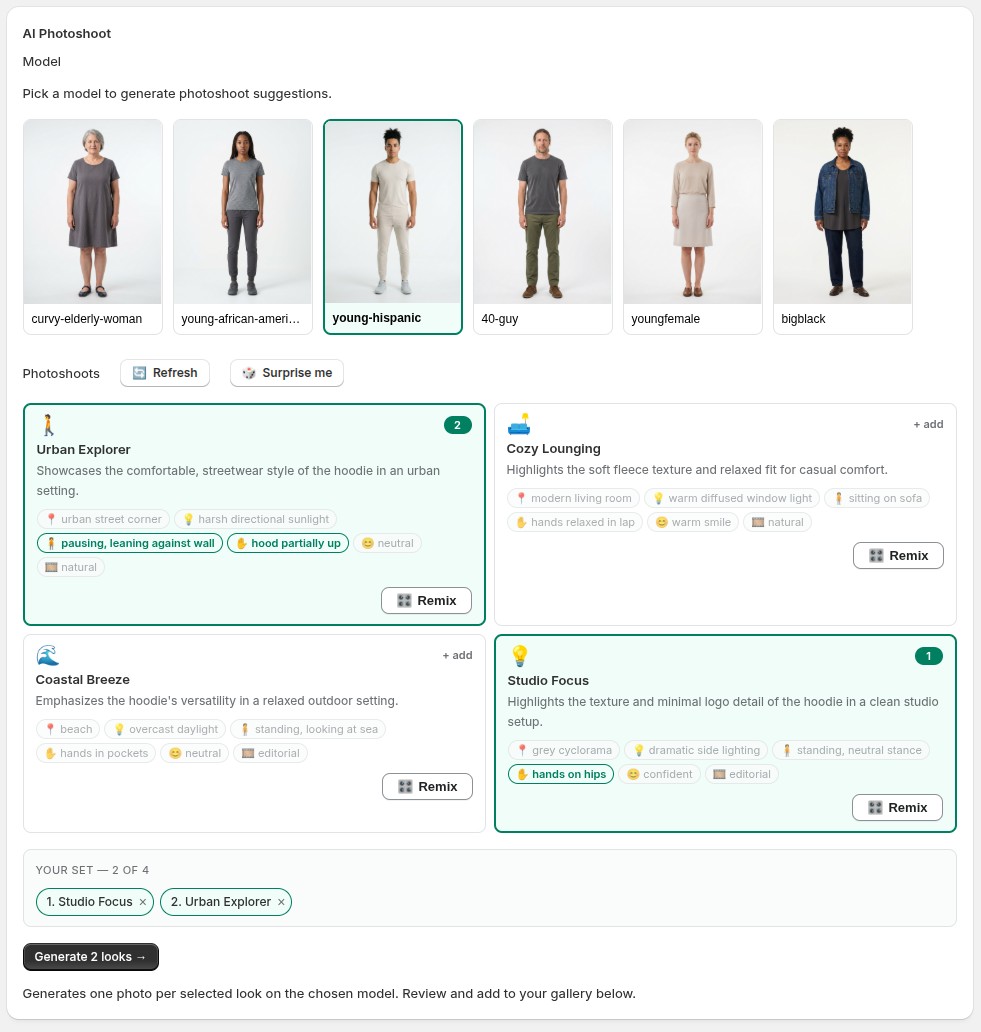
Pick a model, then a set of looks cast for them — your set of up to four - Remix any lookEvery look is editable. Tap 🎛️ Remix and swap each part of the shot with scene-aware chips — Setting, Light, Pose, Gesture, Expression, Grade (and Props when they fit). The first chip in each row is the look’s own default; tap another to steer. Need something specific? Add a note (“shot from a low angle”, “add a leather tote”) — it steers that one shot only.
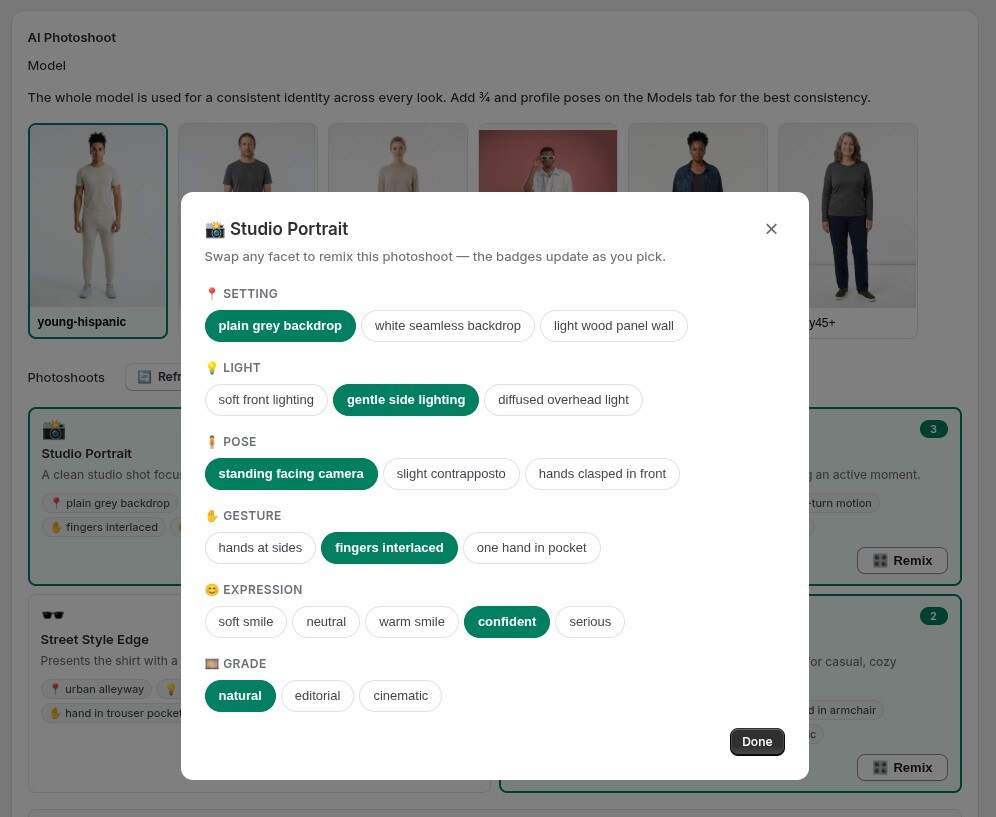
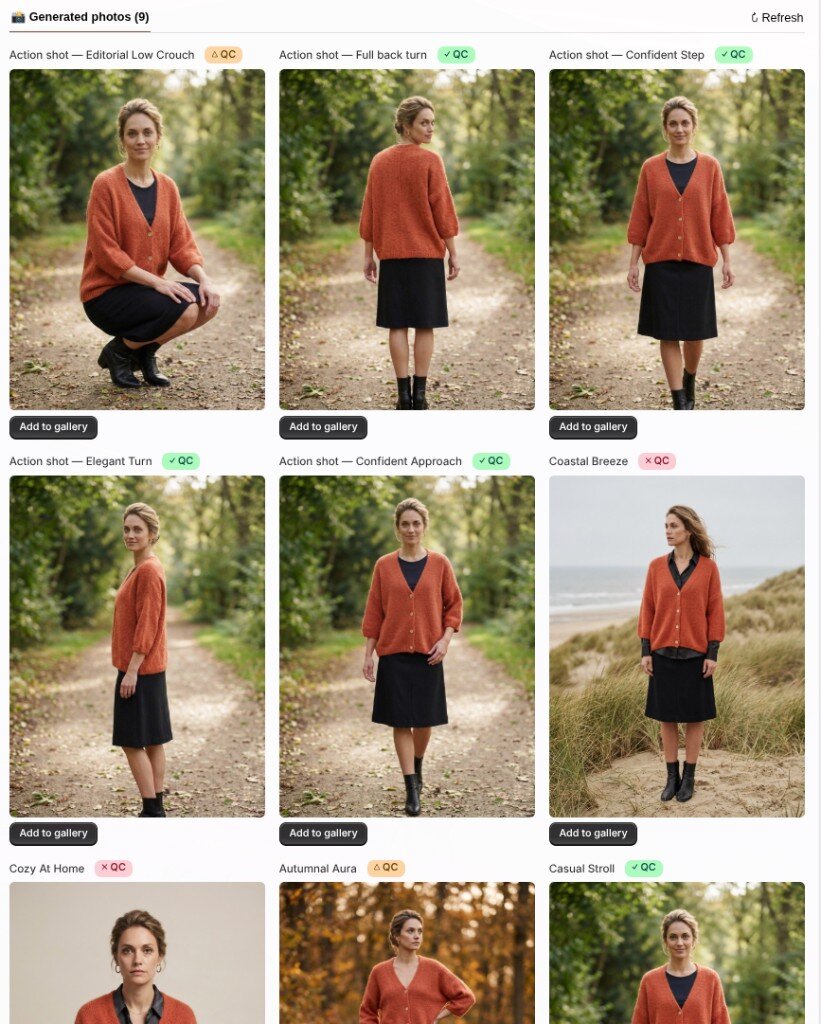
Remix a look — swap setting, light, pose, gesture, expression and grade, plus a per-look note - Generate your setSelect up to 4 looks — your set — and Generate. Each look becomes a full-resolution photo on this page, under Generated photos, with a QC badge on it. The same shots also land in the shop-wide Generated photos tab.
Select up to four looks — Your set, then Generate - Read the quality checkEvery photo is checked against the product photos we actually used. Hover the badge: ✓ QC matches, △ QC raised a note we judged usable, ✗ QC something may have drifted. The check is strict, and it isn’t always right — a red or amber shot can still be a keeper. A badge never blocks you from publishing. On a red check, tap Fix for a repaired version next to the original (never overwrites it; 1 photo from your plan). How well a fix lands depends on the product photos behind the shot.
Every generated photo gets a QC badge — hover it to see what we looked at. - Crop, then add to your galleryClick a shot to inspect it full-size. Use the smart crops — face, waist-up, full-body, shoes — detected on that exact image, so a hero, a thumbnail and a detail shot all come from one shoot. Save crop or Save as new image. When a shot’s a keeper, Add to gallery pushes it to the product on Shopify (the card shows In gallery). Don’t love it? It never leaves CatalogShoot. The shop-wide Generated photos tab uses Activate for the same action.
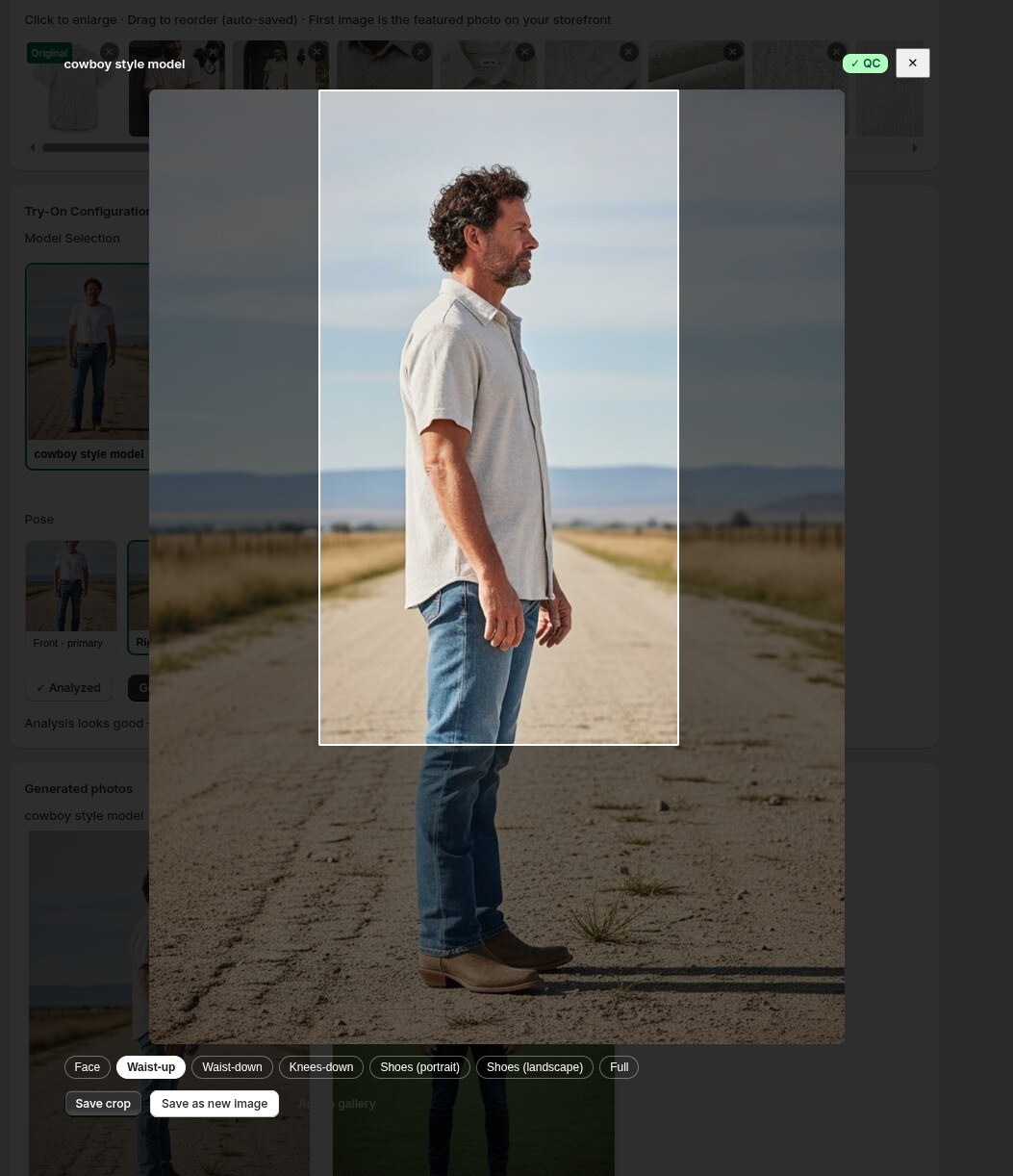
Review a result and use the smart crops before publishing
5. Product video
Any photo you’ve generated can become a 6-second, 1080p, 9:16 product video — no timeline, no editor, no exports. It all happens in the AI Animation Studio, one page that lays out the whole photo-to-video story left to right.
It starts with the poses. The Studio animates one photo into a whole set of on-model looks — front, back, a lively moment — each a keepable photo in its own right. Then you turn any of them into a video.
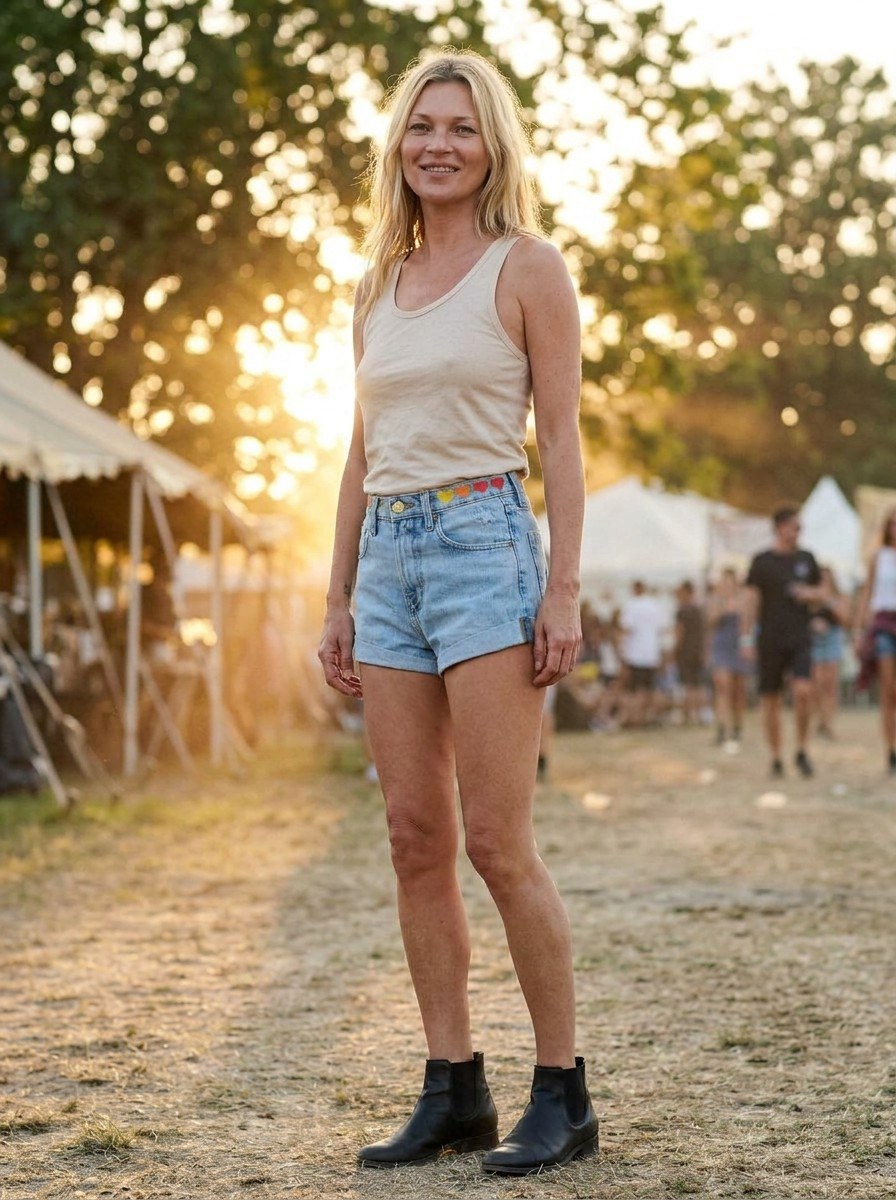
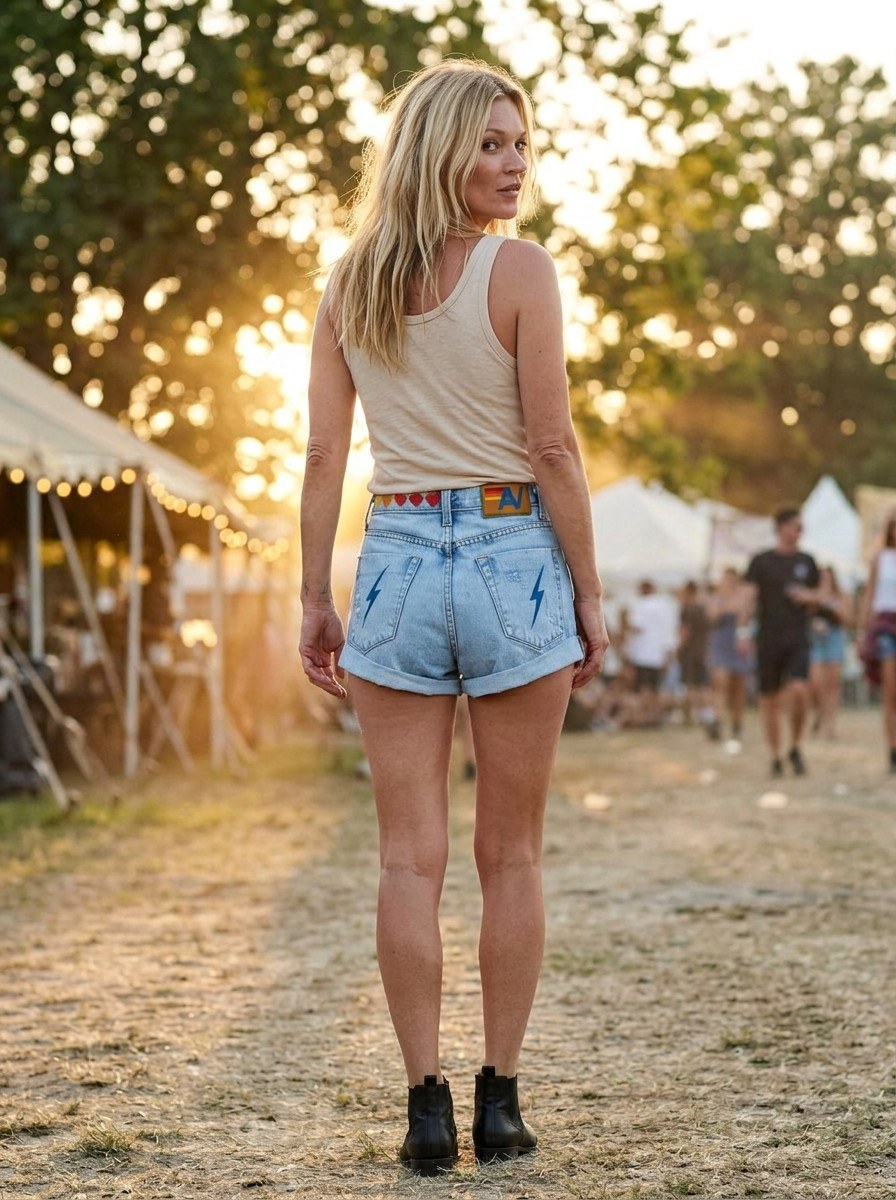
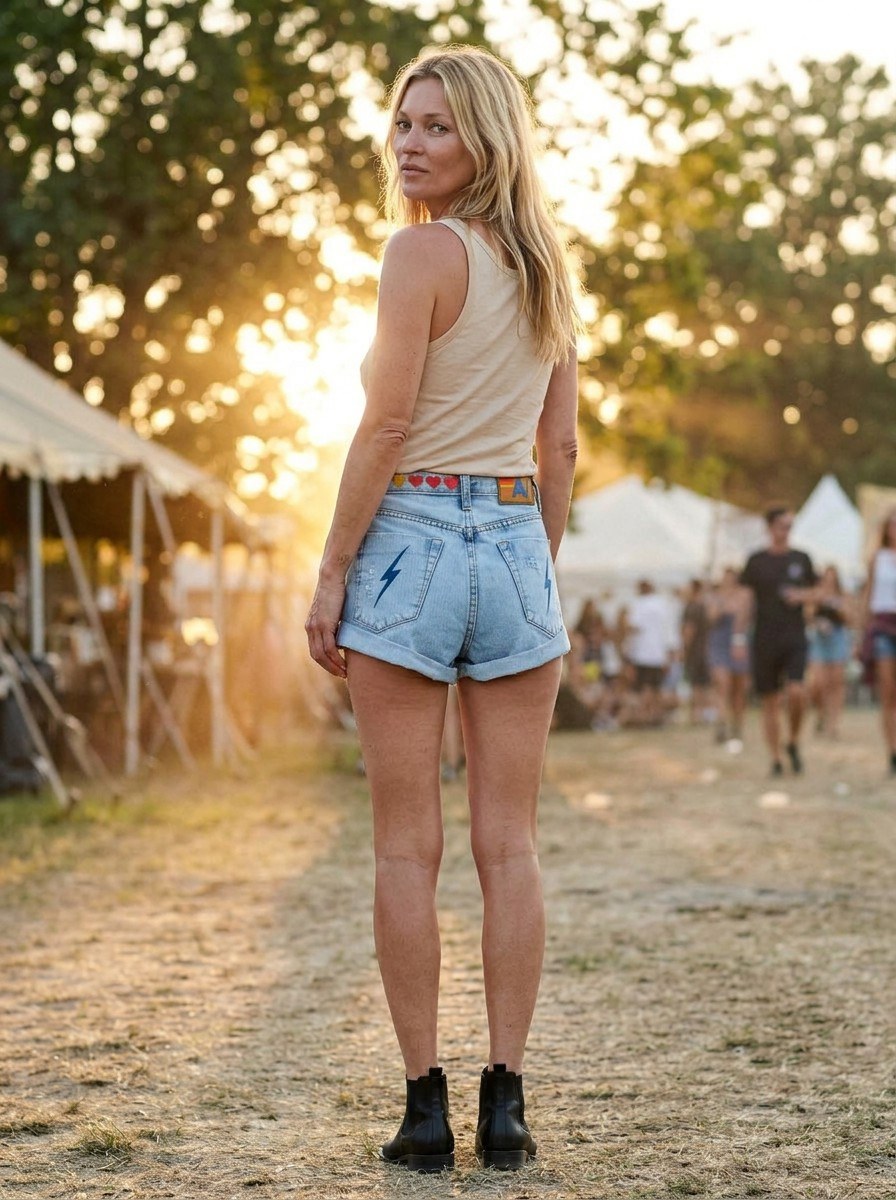
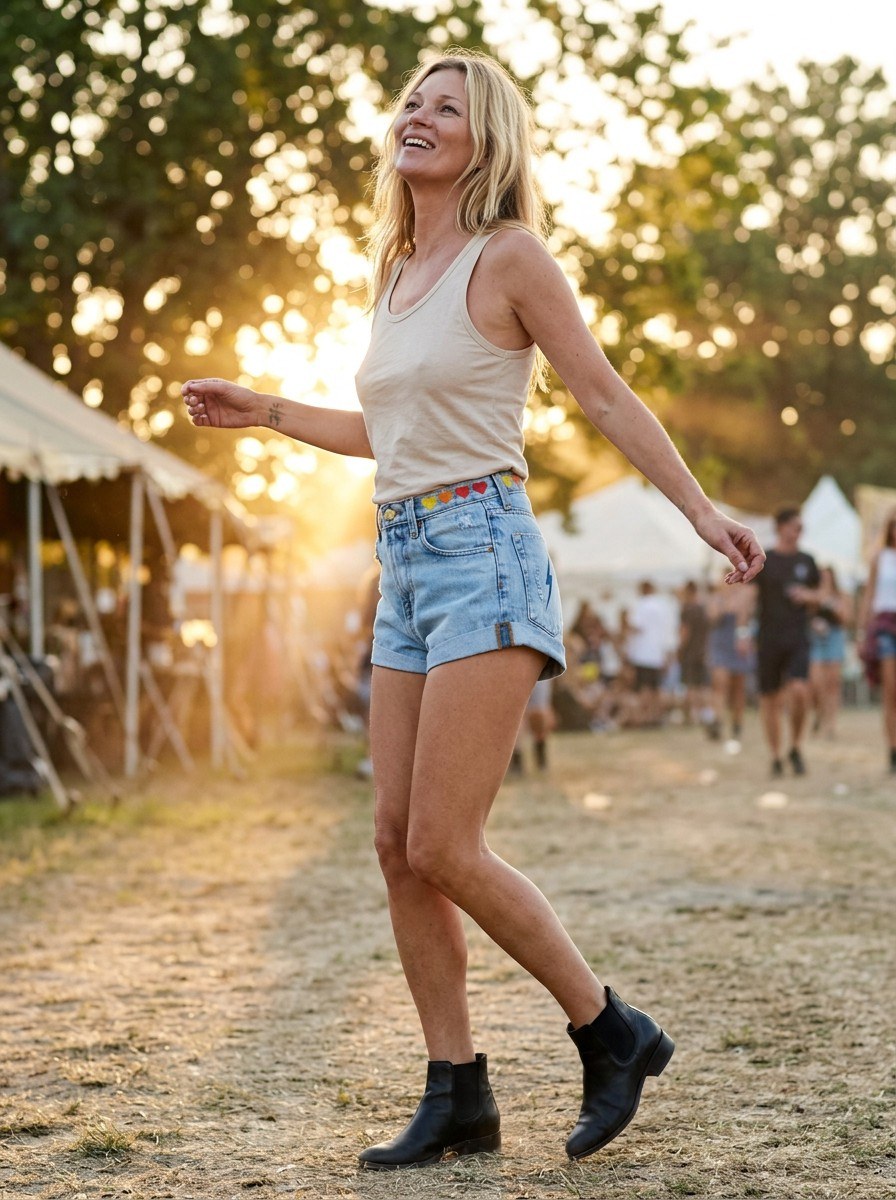
- Animate a photoOn any generated photo, hit 🎬 Animate (on the card or in the lightbox) to open the Studio. Up top you’ll see your product gallery (what it works from); in the middle, the three frames that are the video — the start frame, the video, and the reference frame (the end).
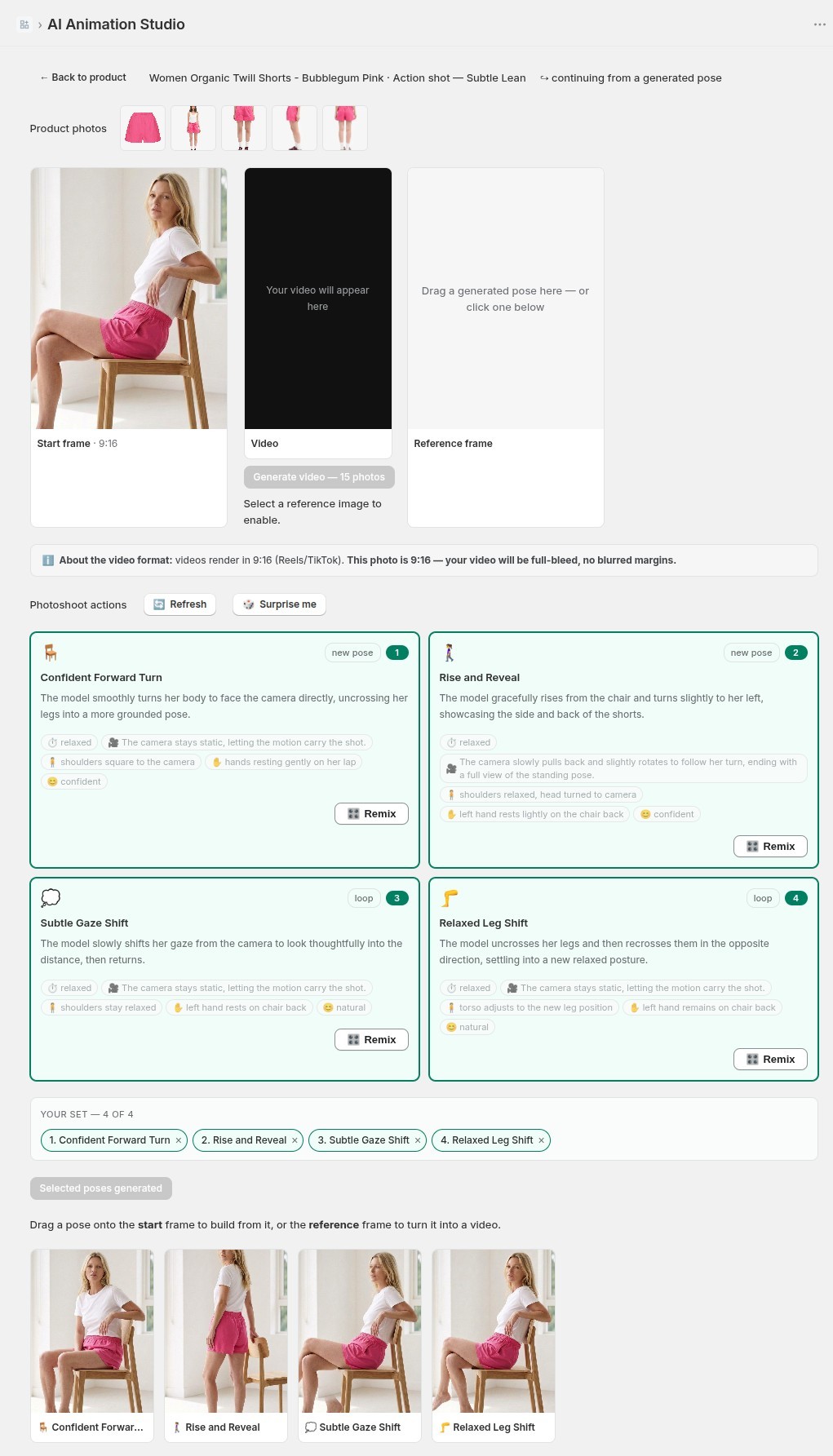
AI Animation Studio — start frame, video and reference frame, with photoshoot actions and your generated poses below - Pick photoshoot actionsThe Studio suggests actions for your photo — a turn to show the back, a confident step, a gentle shift. Multi-select the ones you want; 🔄 Refresh or 🎲 Surprise me swaps in fresh ideas while keeping the poses you’ve already made. Remix a motion just like a look — pace, camera, body, hands, expression, plus a note.
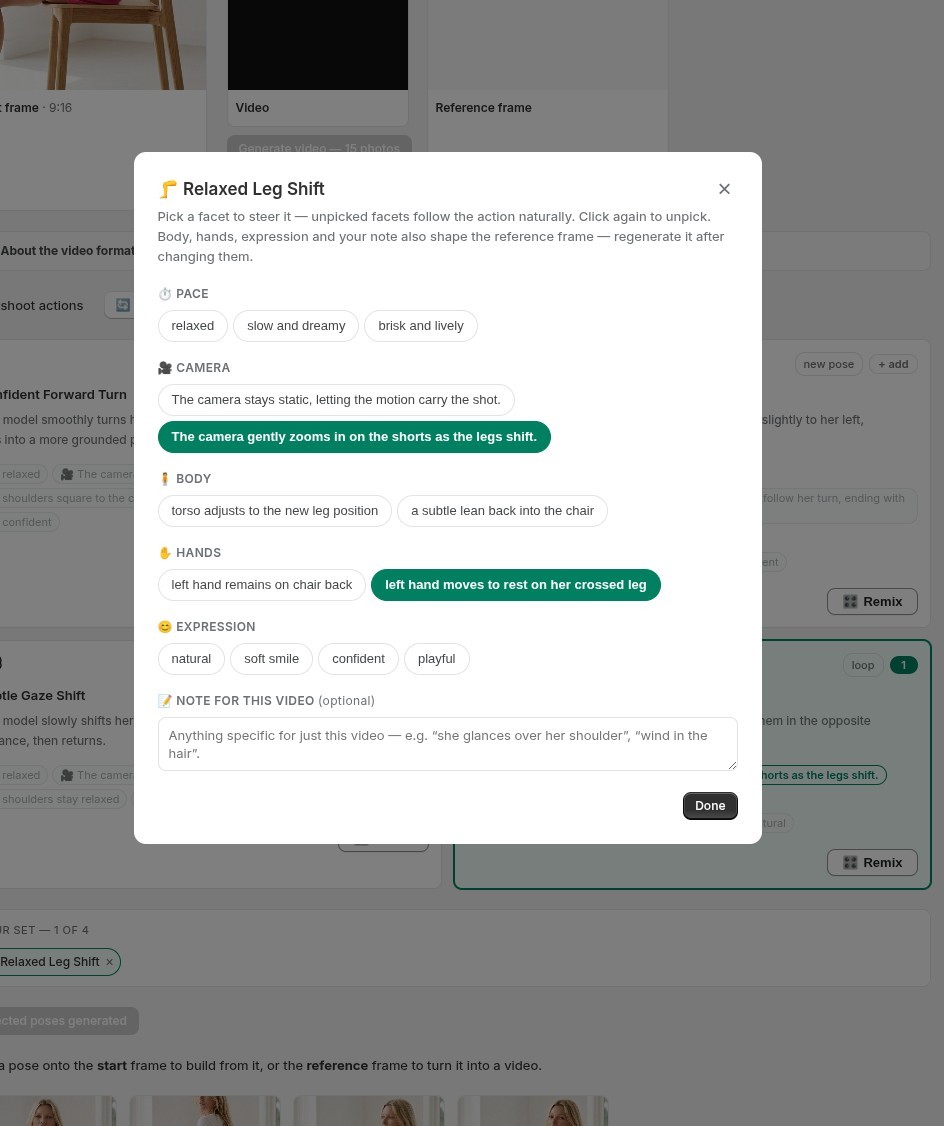
Remix a motion — pace, camera, body, hands and expression, plus a note for the video - Generate the poses, then the videoGenerate a pose and it’s saved as a normal photo (a keeper either way), with the same QC badge — you’ll see it under Generated photos on the product and in the shop-wide tab. Drag a pose onto the reference frame to set the video’s end, then Generate video. It renders in 2–3 minutes and appears right between its frames, with Reels/TikTok (9:16), Instagram (4:5) and Square (1:1) downloads — or Activate it into your Shopify gallery. Finished clips also live under 🎬 Generated videos.
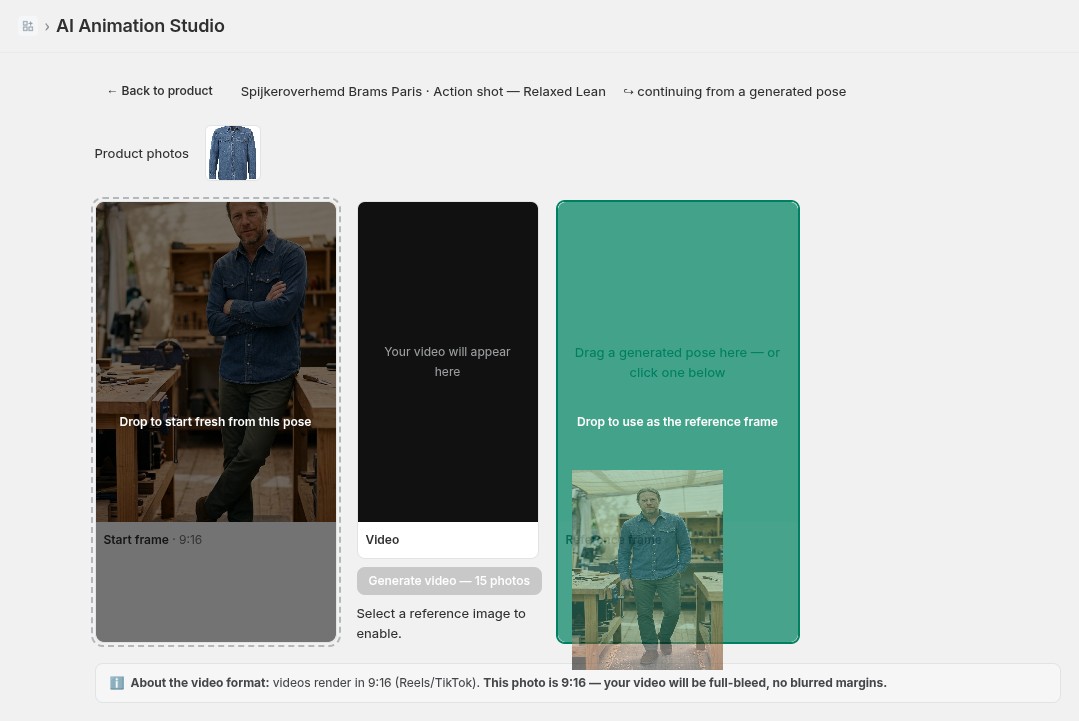
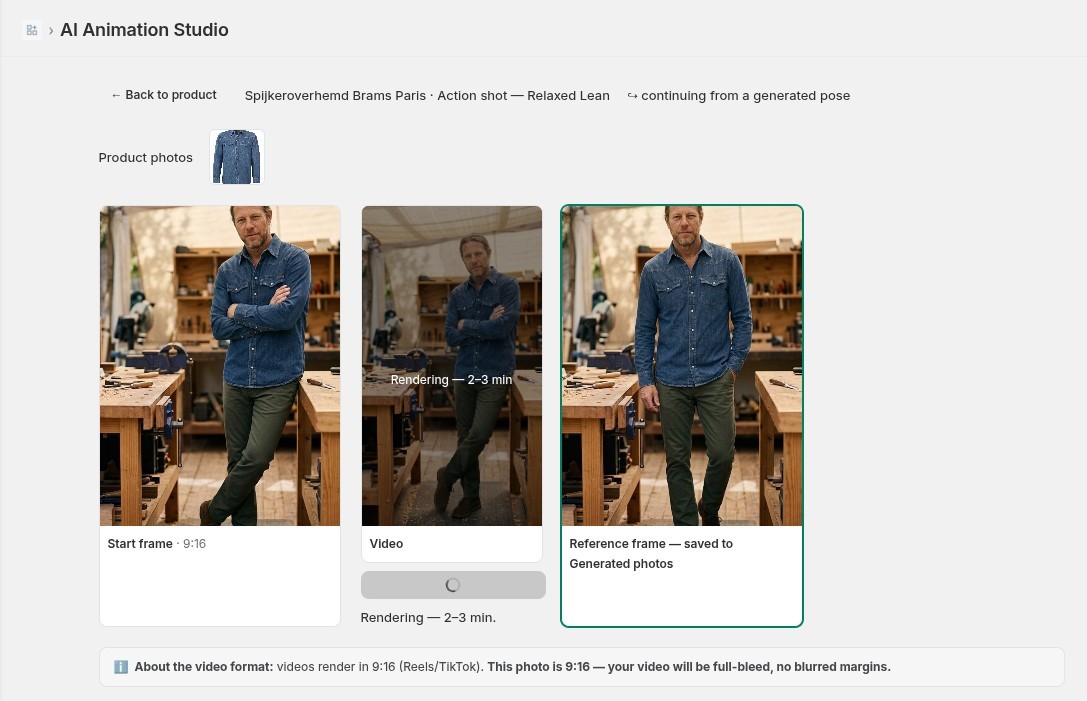
Drag a pose onto the reference frame, then Generate video — it renders in 2–3 minutes, right between its frames
6. Turn on the storefront Try-On
This is what makes CatalogShoot more than a photo tool: shoppers put your garment on their own body from a selfie, right on the product page.
- Enable Try-On per productIn Products, Enable try-on on the items you want (or enable a whole selection in bulk). Off by default, so you stay in control. The floating button itself is added from Home (Add Try-On to your storefront) or in the theme editor below.
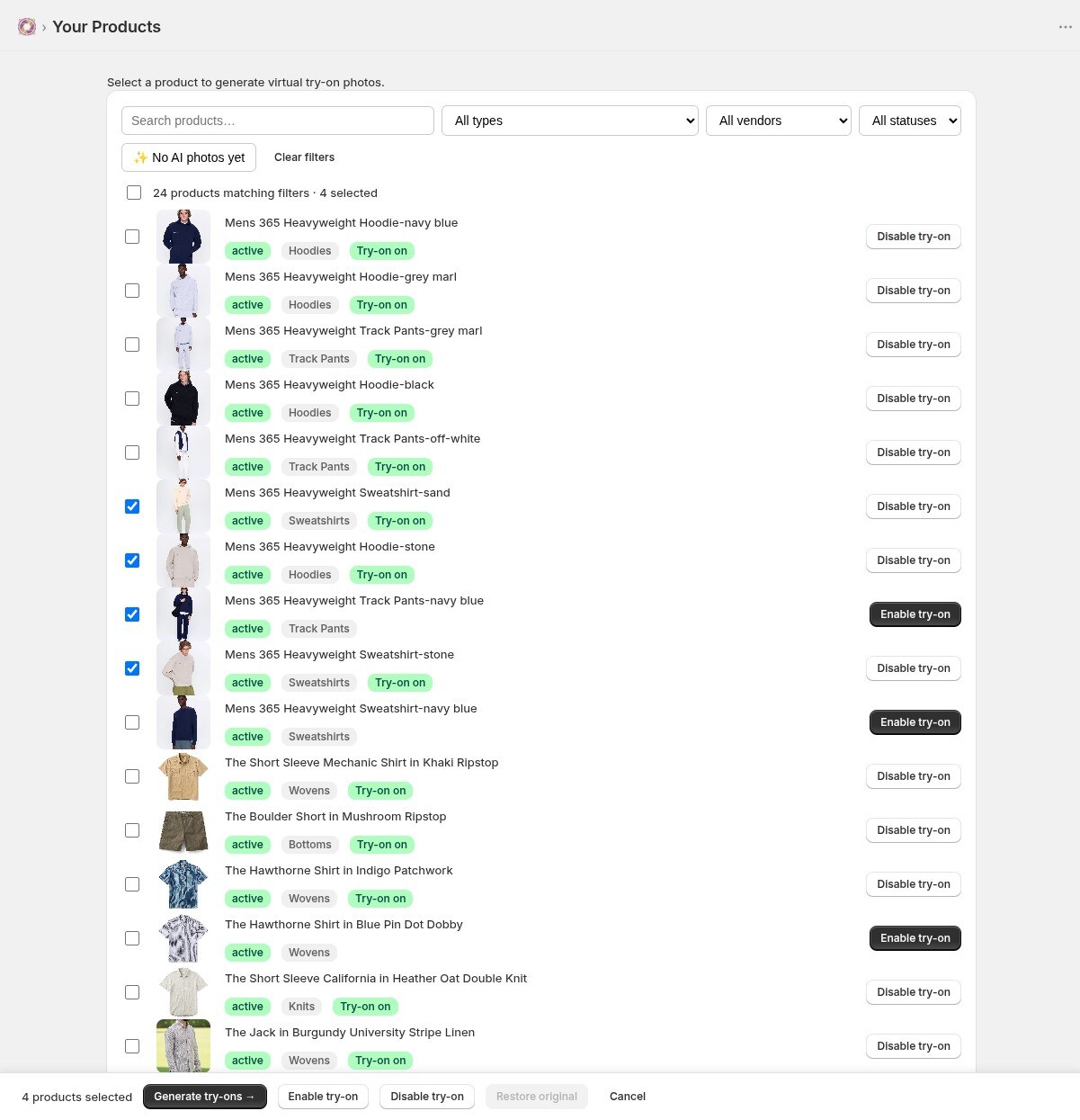
Products page — switch Try-On on per product or in bulk - Add the button to your theme
In the Shopify theme editor you have two options — use either or both:
- Inline button — add the Try It On block to your product template and drop it wherever you like (next to the price or Add-to-cart).
- Floating button — turn on the Try It On (floating) app embed for a button that rides a corner of every enabled product page. No placement needed.
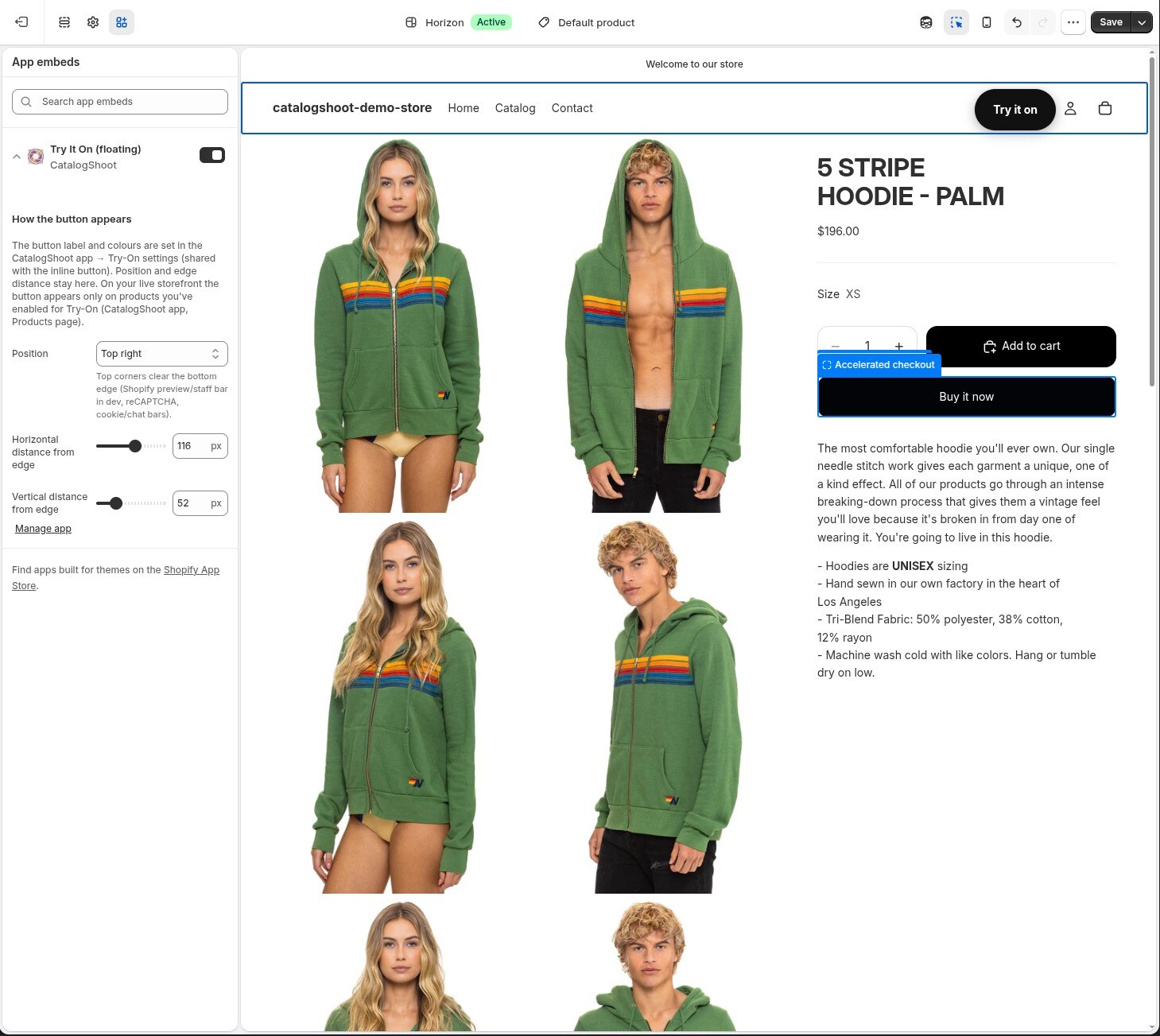
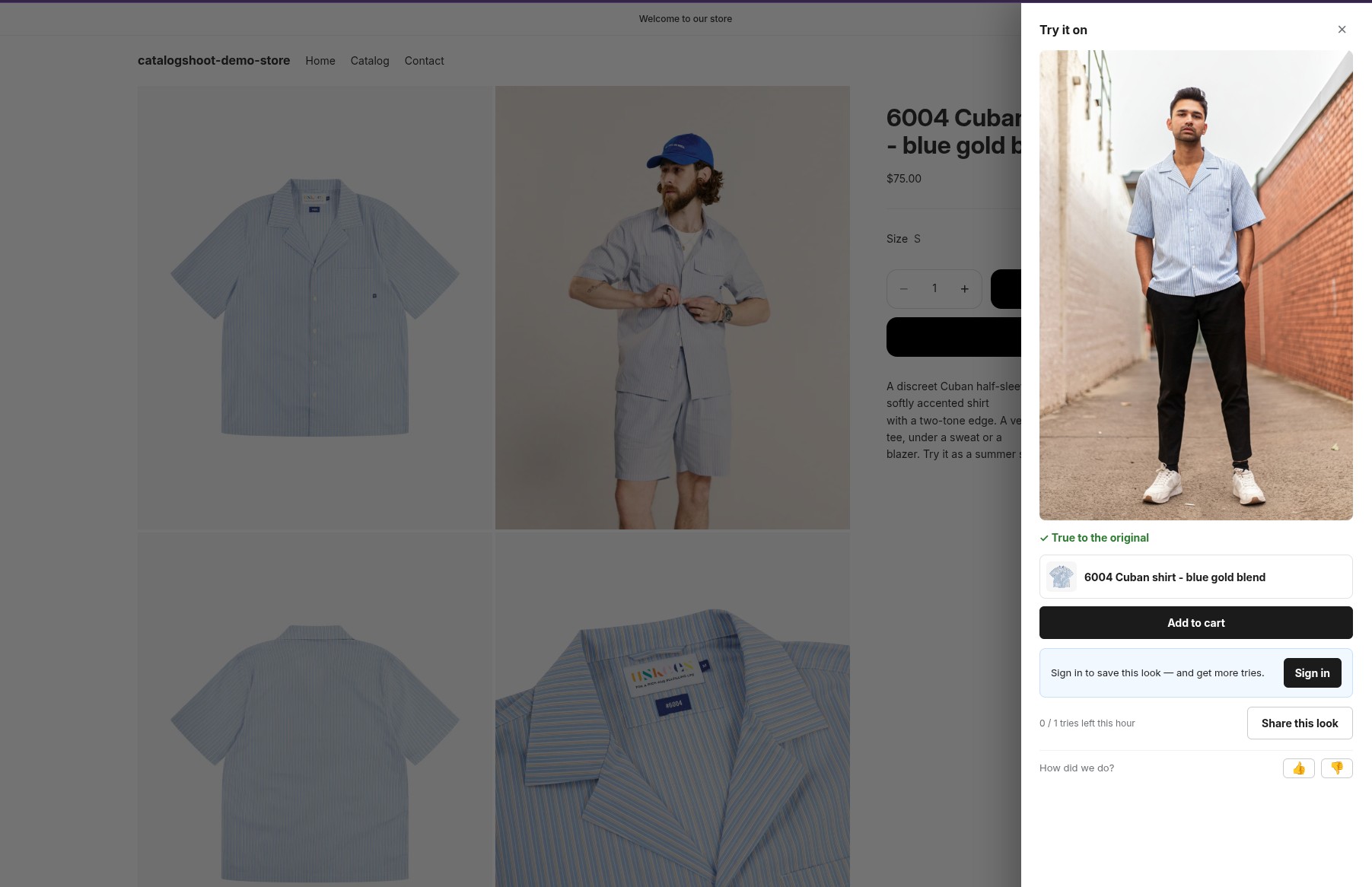
Adding the Try-On button in the Shopify theme editor - That's itOn enabled products the button appears; a shopper taps it, uploads a photo, and sees your garment on themselves — then adds to cart, or saves and shares the look.
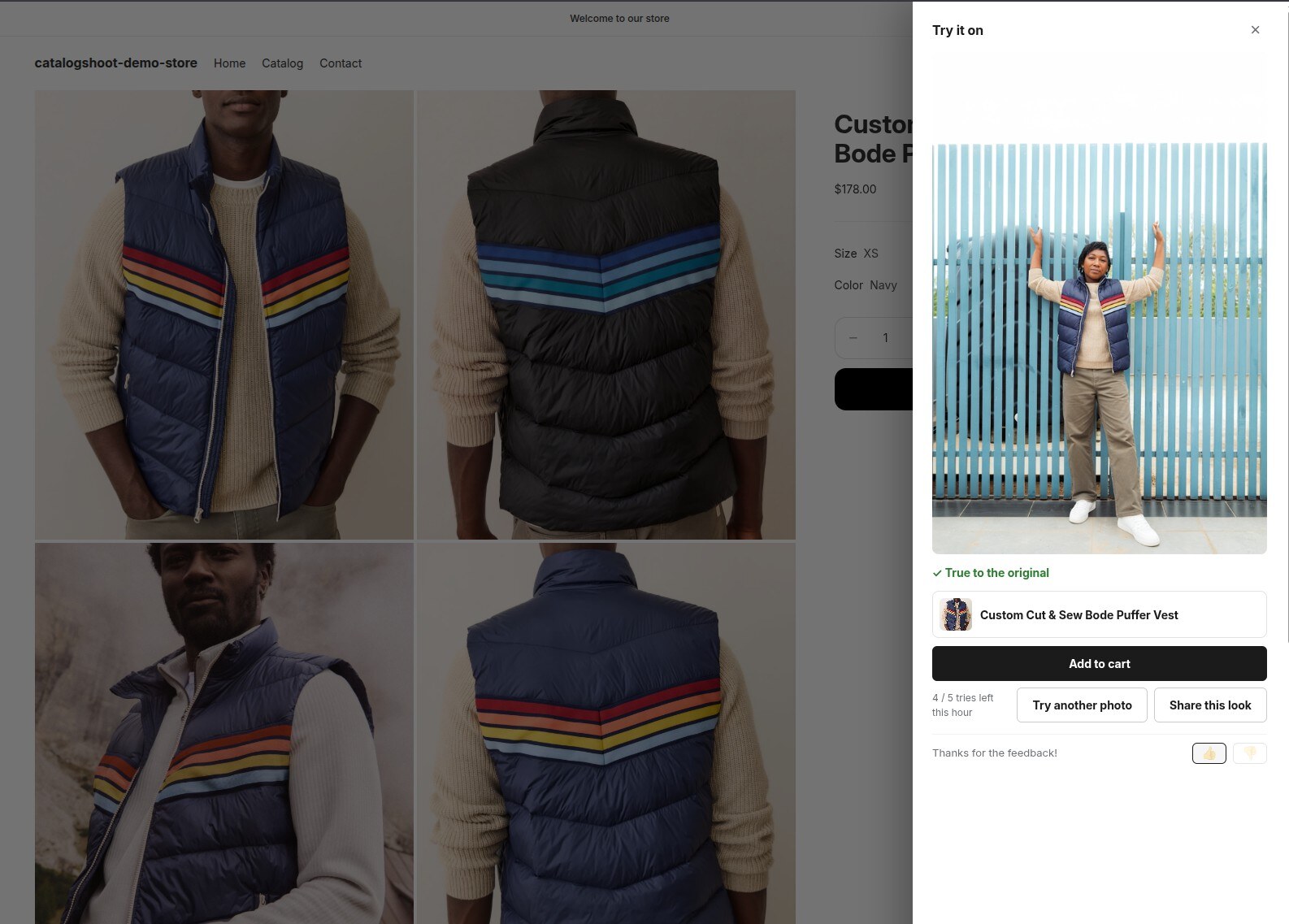
A shopper taps Try-On, uploads a selfie, and sees the garment on themselves 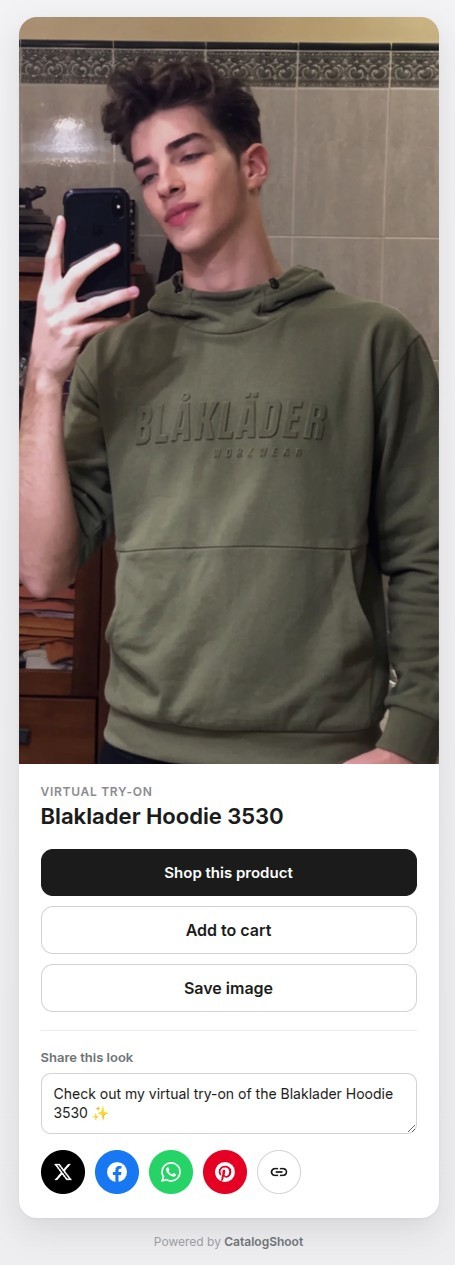
They can save the look and share it — one try-on turns into repeat visits and word-of-mouth
7. Style the button
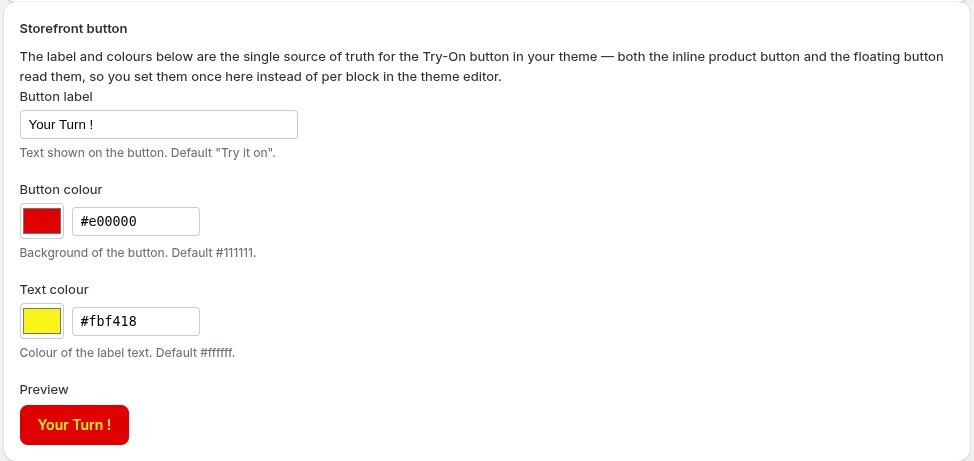
The button’s label and colours are set in one place — the app’s Try-On settings — and both buttons (inline and floating) read from it, so they always match. Set it once; no editing per block in the theme editor.
Label
Colours
Placement
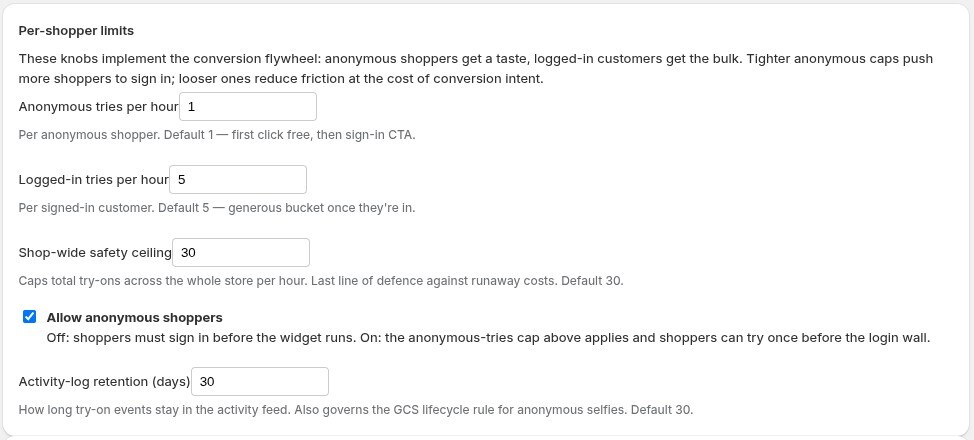
8. Per-shopper limits
The Try-On settings page also tunes the conversion flywheel — how much shoppers can try before signing in, and a safety ceiling so costs never run away.
Anonymous tries
Logged-in tries
Shop-wide ceiling
9. Try-On activity
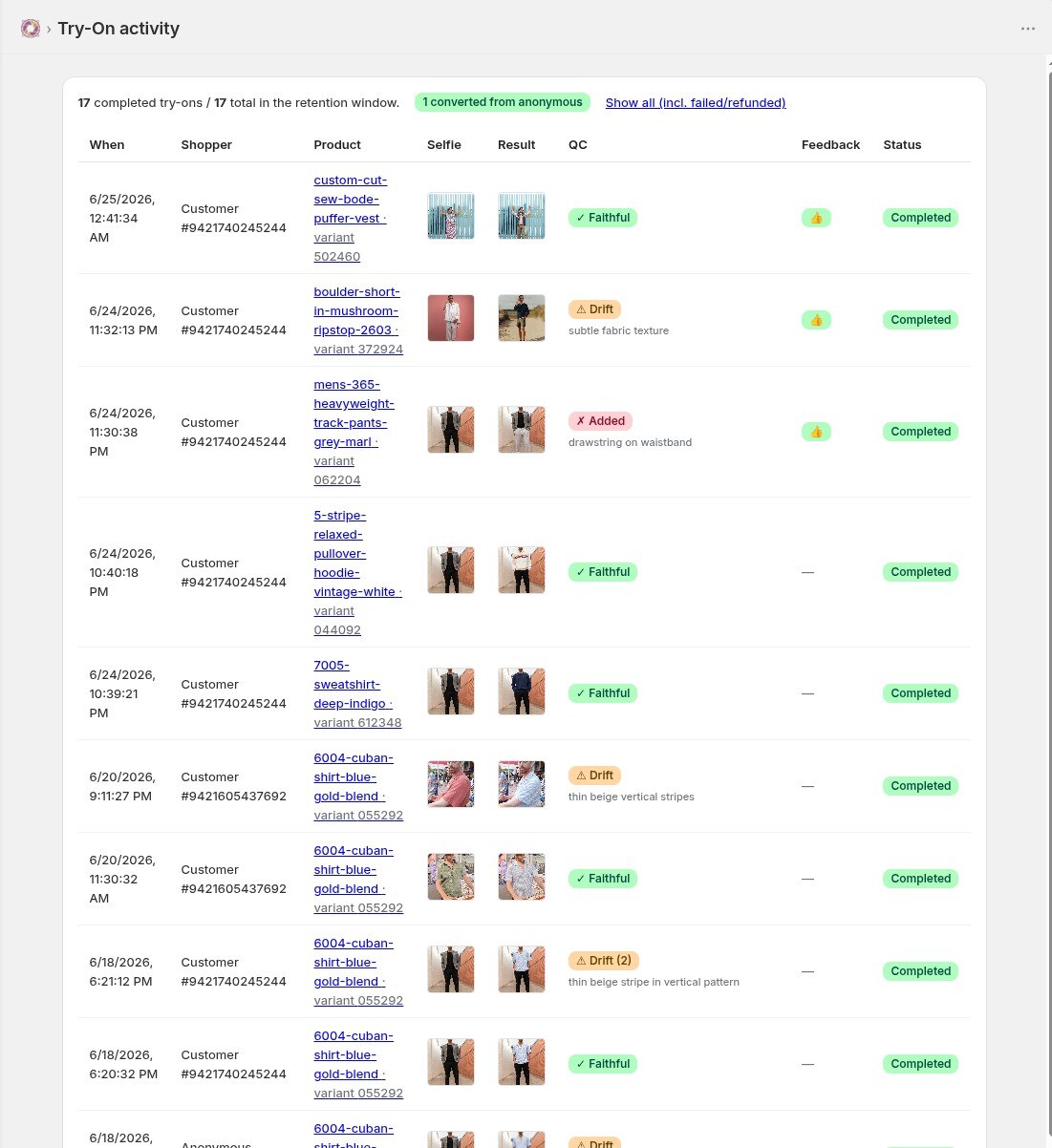
See try-ons as shoppers run them — which products are getting tried on, and how often. It’s your read on what’s resonating, and a sign of buying intent.
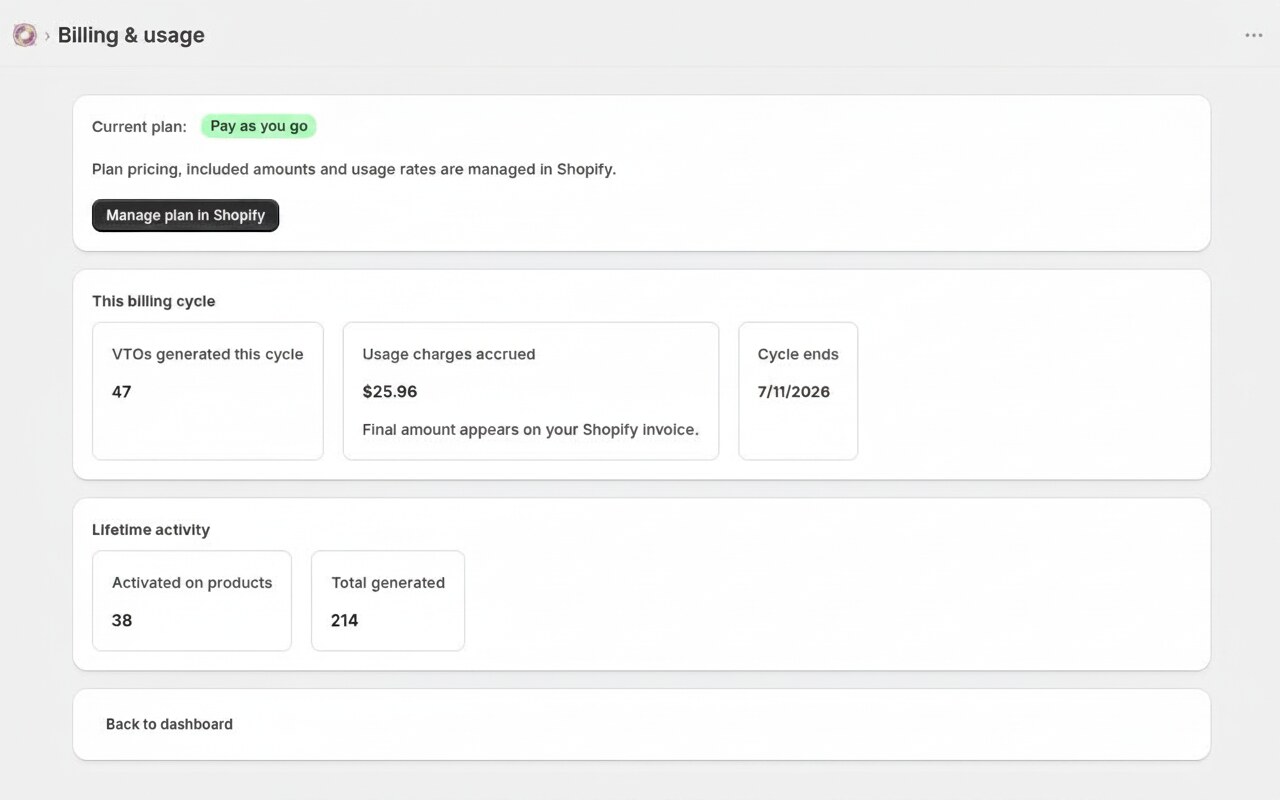
10. Billing & plans
Every plan is a low monthly base plus what you generate — a block included free, then a per-photo rate that drops as you scale. Billed through Shopify, alongside the rest of your store.
Pay as you Go
- First 3 photo generations free
- Then $0.59 each
Starter
- First 120 photo generations free
- Then $0.49 each
Growth
- First 400 photo generations free
- Then $0.30 each
Scale
- First 800 photo generations free
- Then $0.25 each